[NEW] Connecting Claude or ChatGPT to Your Vitals Data
Last updated on September 24, 2026
Ask Claude or ChatGPT about your reviews, upsells, recordings, email campaigns and wishlists — in the assistant you already use
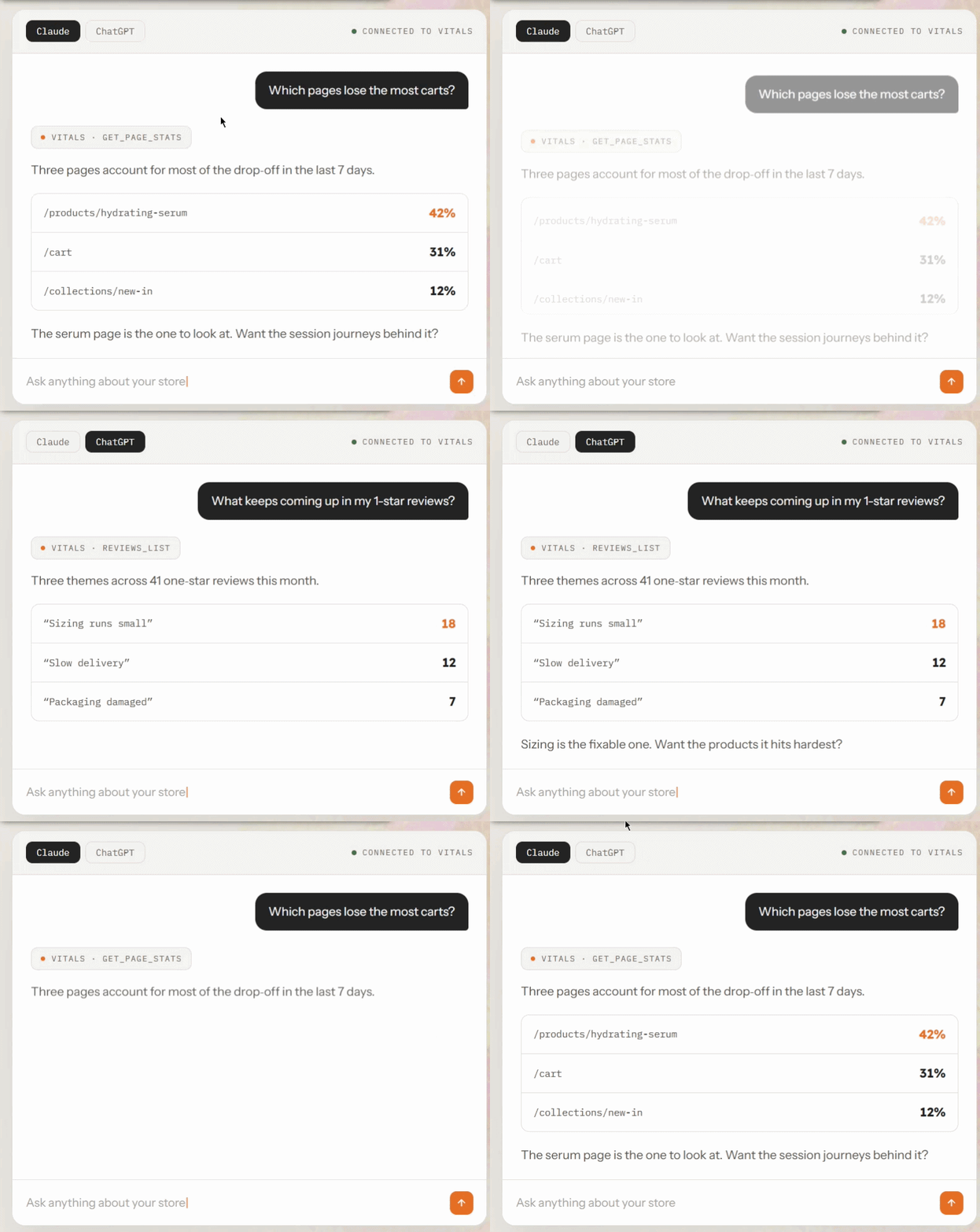
If you work in Claude or ChatGPT, you can connect them to your store and ask about your Vitals data in plain language. Ask "how are my reviews doing?" or "which upsell offers earned the most last month?" and the assistant reads the answer straight from your store.
You set the connection up yourself; it takes a couple of minutes, and it's read-only from start to finish. An assistant can report on your Vitals data, but it can't change anything in your store.
💡Already using Shopify Sidekick? That's a separate, automatic integration inside your Shopify admin — see Asking Shopify Sidekick About Your Vitals Data. Connecting Claude or ChatGPT is something you do here in Vitals, and the two work independently: setting one up changes nothing about the other.
Before you start
- This is part of the Vitals bundle, so it appears if you use Vitals itself.
- You don't need an API key, a developer account, or anything technical. You copy one address, generate a short code in Vitals, and approve the connection.
- In ChatGPT, custom connectors depend on your ChatGPT plan and may sit behind a developer setting. Your assistant will tell you what it needs.
How to connect an assistant
Open the Vitals dashboard and click Preferences.
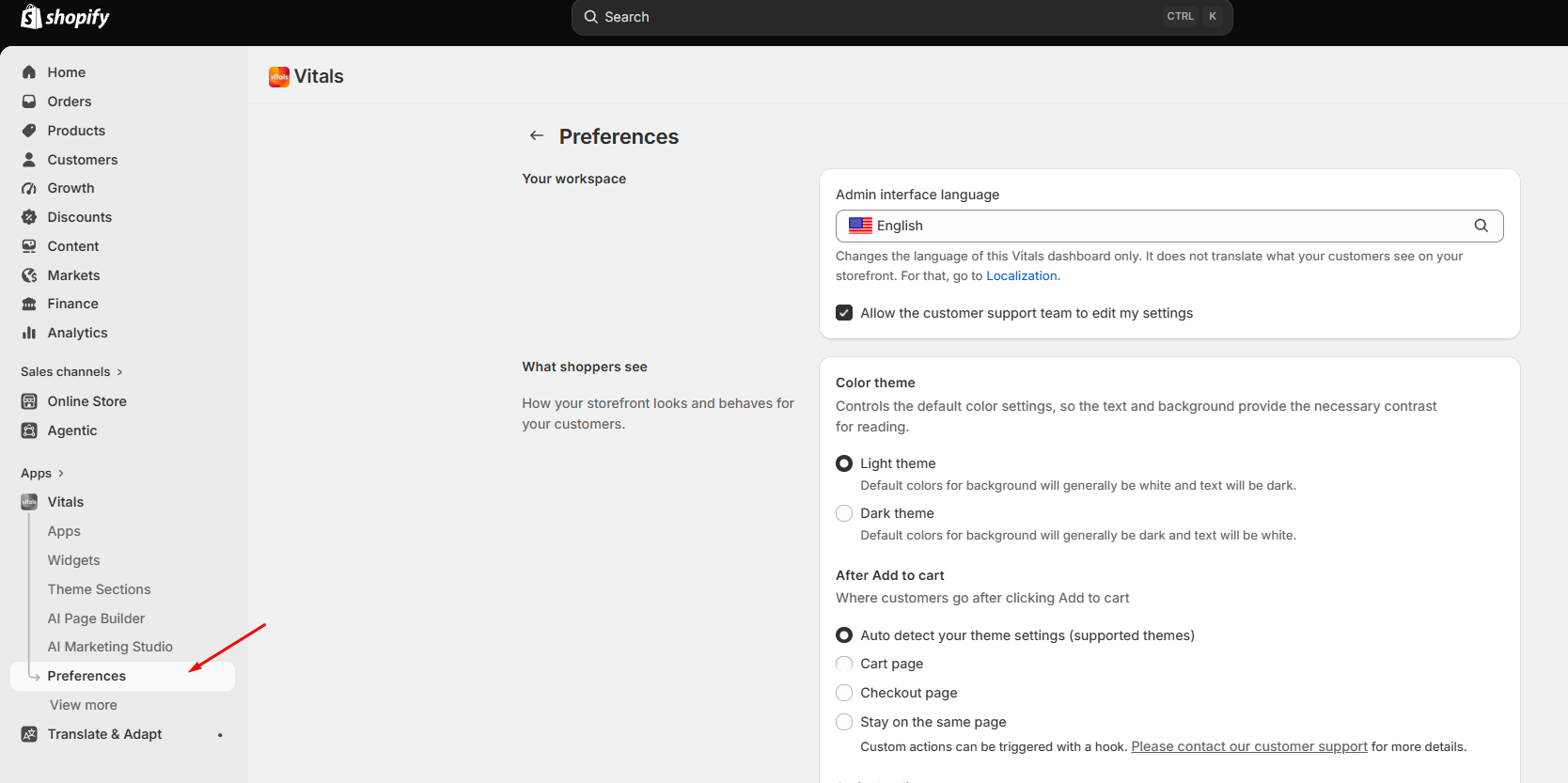
Scroll down to the AI assistants section. Its description has a Documentation link that opens this article.
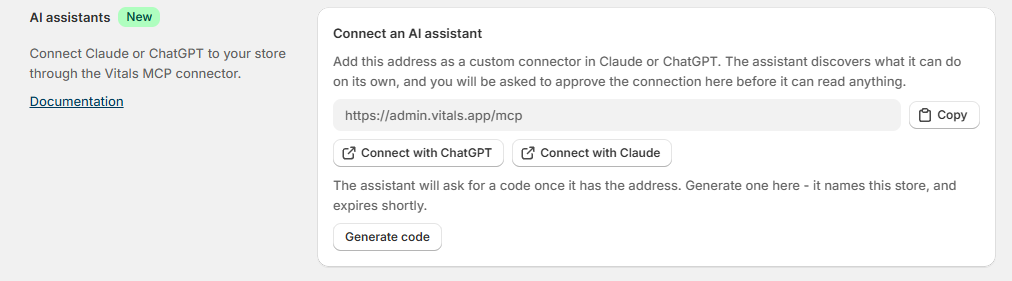
- Click Copy to copy the connection address. It's the same address for every Vitals store, so on its own it doesn't point at your store or unlock anything — you choose the store in the next step.
- Click Connect with ChatGPT or Connect with Claude. Your assistant opens in a new tab with a message ready to send, asking you to walk them through adding the connector. Send it and follow along. The steps live within the assistant's settings and change often, so the assistant is the most reliable guide to its current setup.
- When the assistant asks to connect, it opens a Vitals page asking Which store should [assistant] read? Go back to the AI assistants section, click Generate code, then Copy, paste the code into that page and click Continue. The code only names this store, and it expires after 10 minutes — if it runs out, click Generate a new one.
- You're taken to the approval screen in that store's Vitals admin. It names the assistant, lists everything it's asking to read, and confirms the connection is read-only.
- Click Approve. Your assistant can now read your Vitals data. Cancel stops the connection there and shares nothing.
If the approval screen sits unanswered for more than about ten minutes, the request expires. Just start again from your assistant.
💡Check it worked: ask your assistant for your Vitals store overview. It should come back with your apps and which ones are switched on. If you want to be certain it's reading the right shop, ask it to confirm which store it's connected to.
Connecting more than one store
If you run several stores on Vitals, one assistant can read all of them — you don't need a separate connection for each.
- Ask your assistant to add another store to its Vitals connection. It gives you a link.
- Open the link. Then, in the Vitals admin of the store you want to add, go to Preferences → AI assistants and click Generate code.
- Paste the code into the page the link opened and click Continue.
- Approve the connection in that store's admin, just as you did the first time.
The code always comes from the store being added — that's how Vitals knows which store is joining. Once more than one store is connected, just tell the assistant which store you mean when you ask a question.
If your assistant says the connection predates multi-store support, disconnect it, connect again, and then add your other stores.
What you can ask about
Six areas of Vitals are available. What your assistant can reach depends on what you approved. All six are offered to every connection, whatever apps you run, so ask about an app you don't have switched on and the assistant will simply tell you it's off.
Your store overview
Which Vitals apps have you switched on, and what each one has earned or shown recently? This is the best place to start. It tells the assistant which apps you actually run, so it stops guessing. It can also suggest which Vitals apps to turn on for your store, and which of your other Shopify apps Vitals could replace.
Product Reviews
Your store-wide rating picture, your recent reviews, which products rate best and worst, and the stored AI summary for a product where you've generated one.
Upsell Builder
How your offers are performing, the list of offers themselves, and the orders your offers were credited with.
Visitor Replays
Your recorded sessions, what a particular visitor did step by step, and how your pages are performing for traffic and behavior. You can also go the other way and ask which recording belongs to a specific order number. This is useful when you want to see what happened before a purchase, or before a refund request. Recordings are kept for 31 days, so an older order has no session to show, and the order-number lookup only works for orders placed after this feature was released.
Email Marketing
How your campaigns and automations are performing over time, and the list of campaigns and automations themselves.
Wishlist
How shoppers are using your wishlist, and which products get saved most often.
What an assistant can't do
⚠️Every connection is read-only. An assistant can read and report — it can't publish or reply to a review, create or change an offer, edit a setting, send a campaign, or place an order. Anything you want to act on still happens inside Vitals.
A few other boundaries worth knowing:
- You approve areas as a set, not one at a time. The approval screen lists everything the assistant is asking for, and Approve grants all of it. If you want to grant something different later, disconnect and connect again.
- Time ranges differ by app. Recent sessions and page statistics cover a shorter recent window than the performance figures for your apps, and some counts, like your all-time review totals, aren't limited by date at all. Ask your assistant what period a number covers if it matters.
- Money comes back in US dollars, whatever currency your store sells in.
- A missing number doesn't mean zero. If an app doesn't measure something, it's left out of the answer rather than reported as nothing. A good assistant will say so rather than inventing a zero.
- Asking for something that isn't covered? Your assistant can log the request so we know what to build next. It records what you asked, and nothing else about your store.
Managing your connected assistants
Every assistant you've approved is listed at the top of the AI assistants section with its name, a Connected badge, and when it was last used — Never used if it hasn't read anything yet. Before you connect anything, the section just shows Connect an AI assistant with the address and the Connect buttons; once something is connected, that part reads Connect another assistant.
To revoke access, click Disconnect beside that assistant. Its access to this store stops right away, and you can reconnect from the same place whenever you want. If the same assistant also reads other stores of yours, those stay connected — disconnect it in each store you want to remove. If you see Could not disconnect, just try again.
💡Review the list now and then. An assistant names itself when it connects, so if you ever see an entry you don't recognise, disconnect it — you can always reconnect the ones you do use.
Tips
- Start with your store overview. It orients the assistant around the apps you actually run, and the answers to everything after it get sharper.
- Ask where Vitals could help. "Which Vitals apps should I turn on?" and "Which of my apps could Vitals replace?" both work once you've approved your store overview.
- Ask the question you'd ask a colleague. "Which upsells aren't pulling their weight?" works better than app jargon.
- Narrow the question rather than asking for everything. A tighter question, like a one star rating, one date range, one offer, comes back faster and more usefully than "show me everything".
- Use it to triage, then act in Vitals. It's quickest for the morning check: what needs moderation, what's underperforming, which recording explains an order. Fixing any of it happens in the app.
Frequently Asked Questions
Do I need an API key or a developer account?
No. You copy the connection address from Preferences and add it in your assistant as a custom connector. The assistant then asks which store to read — you generate a short code in Preferences and paste it in — and you approve the connection in Vitals. There's no key to generate, store, or rotate.
Does this cost extra?
No. Connecting an assistant is included with Vitals. Your assistant's own subscription is between you and Claude or ChatGPT.
Can an AI assistant change something in my store?
No. Every connection is read-only. An assistant can read the areas you approved and report back — it can't publish a review, edit an offer, change a setting, send a campaign, or place an order.
Can I connect more than one assistant?
Yes. Connect Claude and ChatGPT, or several devices or workspaces, and each appears as its own entry; you can disconnect independently.
How do I disconnect an assistant?
Open Preferences, find it in the AI assistants list, and click Disconnect. It loses access to this store right away. If it also reads other stores of yours, disconnect it from each of those stores' Preferences too.
It's part of the Vitals bundle, so it doesn't appear if you use a standalone Vitals app on its own. It's also hidden when your store can't use it. If Vitals has been uninstalled, or your Shopify store is suspended or blocked. If your store is active and on the Vitals bundle and the section is still missing, reload the page, then contact support.
My assistant says the connection address is out of date.
You're using an older address, probably from an earlier version of this page or an old screenshot. Open Preferences, copy the address from the AI assistants section again, and connect with that one. Connections already made on the old address keep working.
My assistant says there were too many requests.
Each store has a limit on how many requests its connected assistants can make per minute, so one busy conversation can't slow everything else down. Nothing is blocked and there's nothing to fix — wait a moment and ask again, or ask for less at once, such as a narrower date range or fewer records.
My assistant says Vitals has been uninstalled, but I still use it.
That message means the connection was made before the app was removed from your store. Reinstall Vitals, then connect your assistant again from Preferences.
The assistant gave me a number I don't recognize. Where do I check it?
Open the app it came from in Vitals and compare against its own analytics. Ask the assistant what date range it used first. The periods differ by app, and a mismatch is usually a different window rather than a different number.
Is the connection address secret?
No. Every Vitals store uses the same address, and it gives access to nothing on its own — an assistant still needs a code from your Vitals admin and your approval before it can read anything.
I generated a code and it stopped working.
Codes expire after 10 minutes. Click Generate a new one in the AI assistants section and paste the new code instead.